Android Layer 2: System Framework
Visual Overview: Startup Sequence
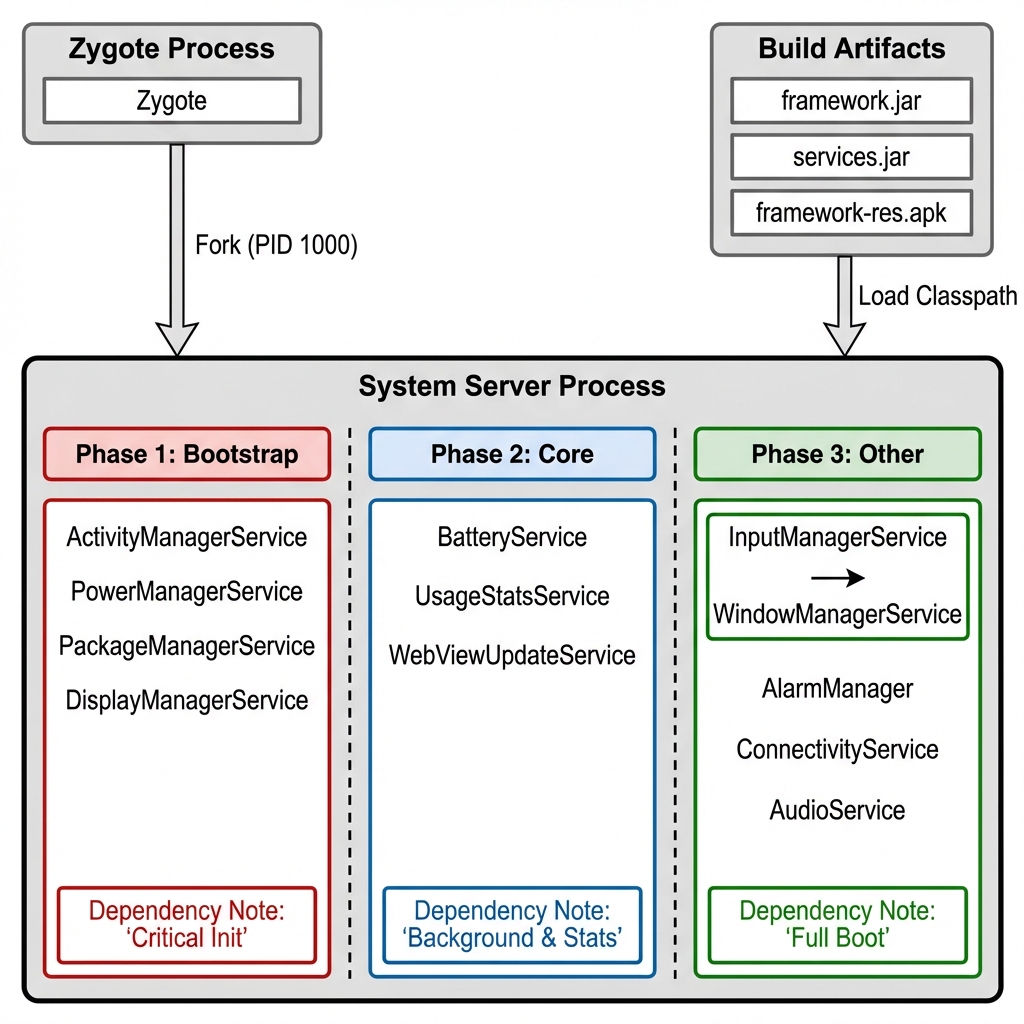
The Framework provides the high-level Java/Kotlin APIs that developers use. Internally, it's powered by System Server.
📁 Official Documentation: Framework Architecture | AOSP Source:
frameworks/base/
System Server: The Monolithic Heart
System Server is the heart of Android. It runs over 70 critical services in a single process.
What happens if System Server crashes?
The entire Android userspace restarts (a "soft reboot"):
- Watchdog detects the crash or
system_serverdies - Zygote receives a signal and kills itself
init(PID 1) detects Zygote death and restarts it- Zygote re-forks System Server and all system services restart
- All app processes are killed and must be relaunched
This is effectively a soft reboot—the kernel stays running, but all userspace processes restart. The device returns to the lock screen.
Why Monolithic?
- Performance: In-process calls avoid Binder IPC overhead
- Memory Efficiency: Shared framework classes (40% memory savings)
- Fast Startup: 200-400ms vs 2-3s for microservices
System Server
System Server is the heart of the Android framework. It's a single Java process that hosts all core system services (Activity Manager, Window Manager, Package Manager, etc.) and is responsible for the majority of Android's functionality.
Think of System Server as Mission Control. It's the central hub where all the important system services live and coordinate. When your app wants to start an activity, check location, or display a notification, it's talking to a service inside System Server.
Framework Internals: The Files
The "Framework" isn't just a concept; it consists of tangible files on the device partition. In modern Android, the monolithic framework.jar has been split to support modular updatability.
| File | Location | Purpose |
|---|---|---|
framework.jar | /system/framework/ | BOOTCLASSPATH: Preloaded by Zygote. Shared memory for all apps (Copy-on-Write). |
framework-graphics.jar | /system/framework/ | BOOTCLASSPATH: Separated graphics code (Canvas/Surface) for modular updates. |
services.jar | /system/framework/ | SYSTEMSERVERCLASSPATH: Loaded by System Server during startup. Private to this process. |
framework-res.apk | /system/framework/ | Core resources (themes/strings). Loaded by AssetManager in all apps. |
libandroid_servers.so | /system/lib64/ | Native JNI library used by System Server (PowerManager JNI, etc). |
[!NOTE] Who loads
services.jar?The Answer: It is loaded by the System Server Process.
- Zygote (Parent) loads
framework.jar(Boot Classpath) and waits for a socket command.- Zygote forks a new child process (PID 1000).
- The Child Process (System Server) sets up its environment and loads
services.jarviaSYSTEMSERVERCLASSPATH.This strictly isolates system service code from regular apps. Only System Server has these classes in memory.
How it Works (The Boot Phases):
The System Server doesn't just start everything at once. It follows a strict 3-phase initialization sequence to manage complex dependencies.
Phase 1: Bootstrap Services
- Goal: Start the bare minimum required to keep the system process alive and manageable.
- Key Services:
- ActivityManagerService (AMS): The "Main Loop" handler.
- PowerManagerService: Ensures the CPU stays on (WakeLocks).
- DisplayManagerService: Initializes the screen so we can show the boot animation.
- PackageManagerService: Parses
AndroidManifest.xmlfiles so we know what apps exist.
- Without these, the system "doesn't exist" yet.
Phase 2: Core Services
- Goal: Services that don't depend on complex policy but are needed for basic functioning or "Safe Mode".
- Key Services:
- BatteryService: Reads battery levels (critical for low-power handling).
- UsageStatsService: Begins tracking app usage time.
- WebViewUpdateService: Prepares the render engine.
Phase 3: Other Services
- Goal: The heavy lifters. This is where 90% of the services live.
- Key Services:
- InputManager: Starts before WindowManager (Windows need input paths).
- WindowManager: Starts after Input and Display are ready.
- Connectivity (Wi-Fi/BT): Network stacks come up now.
- AudioService: Sound system initializes.
- JobScheduler: Background work begins.
- After this phase completes,
AMS.systemReady()is called, and the Launcher (Home Screen) appears.
- Performance: Faster communication between services (in-process calls vs Binder)
- Memory efficiency: Shared heap reduces overhead
- Simplified lifecycle: All services start/stop together
- Trade-off: If System Server crashes, the device reboots (watchdog monitors it)
Service Startup Sequence:
Memory Footprint:
System Server is one of the largest processes on Android:
- Typical RAM usage: 100-200 MB
- Hosts 80-100 services
- Runs with
systemUID (elevated privileges)
Watchdog Protection:
System Server has a watchdog thread that monitors service health. If a service becomes unresponsive, the watchdog triggers a reboot:
📁 AOSP Source:
frameworks/base/services/core/java/com/android/server/am/ActivityManagerService.java
ServiceManager: The Service Registry
ServiceManager is the "phone book" for system services. It runs as a separate native daemon and maintains a mapping of service names to Binder handles.
How it works:
-
Registration: When System Server starts a service (e.g.,
ActivityManagerService), it registers with ServiceManager: -
Discovery: Apps query ServiceManager to get a Binder handle:
-
Security: ServiceManager enforces SELinux policies—only authorized processes can register/query specific services.
📁 AOSP Source:
frameworks/native/cmds/servicemanager/
Key System Services
1. ActivityManagerService (AMS)
Manages app lifecycle, task stacks, and process management.
The Task Manager. It decides which app is currently on screen, which apps are paused in the background, and kills old apps when you run out of memory.
Responsibilities:
- Start/stop activities
- Manage the back stack
- Handle ANRs (Application Not Responding)
- Enforce app permissions
📁 Official Documentation: ActivityManager | AOSP Source:
frameworks/base/services/core/java/com/android/server/am/ActivityManagerService.java
2. WindowManagerService (WMS)
Controls window placement, animations, and input events.
The Window Decorator. While SurfaceFlinger paints the pixels, WMS decides where windows go, handles the "Minimize/Maximize" animations, and figures out which window you just touched.
📁 Official Documentation: WindowManager | AOSP Source:
frameworks/base/services/core/java/com/android/server/wm/WindowManagerService.java
The "App Token" Connection (AMS ↔ WMS)
A common interview question: How does the Activity Manager know about Windows? They don't talk directly about views. They exchange Tokens.
- AMS creates an
AppWindowTokenrepresenting the Activity Record. - AMS sends this token to WMS.
- WMS creates a
WindowStateand attaches it to that token. - When you move an Activity, AMS tells WMS "Move Token X," and WMS moves all windows attached to it.
Binder IPC: The Nervous System
How does an App talk to System Server? Through Binder.
- Proxy: The "Fake" object in the App that looks like the real service.
- Parcel: The container for flattening data (Serialization) to be sent across processes.
- Kernel Driver: Physically copies the data from App Memory to System Server Memory.
- Stub: The "Receiver" in System Server that unpacks the data.
3. PackageManagerService (PMS)
Manages installed apps, permissions, and component resolution (Activities, Services, BroadcastReceivers).
The App Librarian. It maintains the master list of every app installed on your phone. When you tap an icon, PMS figures out exactly which file to open. It also checks if you actually have permission to use the camera or microphone.
📁 Official Documentation: PackageManager | AOSP Source:
frameworks/base/services/core/java/com/android/server/pm/PackageManagerService.java
4. PowerManagerService
Manages device power state (Awake, Asleep, Doze).
- Wakelocks: The mechanism used by apps to keep the CPU running even when the screen is off (e.g., for music playback).
- Thermal: Monitors device temperature and throttles CPU if needed.
📁 Official Documentation: PowerManager | AOSP Source:
frameworks/base/services/core/java/com/android/server/power/PowerManagerService.java
5. LocationManagerService
Provides location data to apps.
- Providers: Fuses data from GPS (GNSS), Wi-Fi, and Cell Towers.
- Geofencing: Triggers events when entering/exiting regions.
📁 Official Documentation: LocationManager | AOSP Source:
frameworks/base/services/core/java/com/android/server/LocationManagerService.java
6. Notification Manager
- Notification Manager: Manages the status bar, heads-up notifications, and Do Not Disturb rules.
Interacting with System Services
System services expose APIs that can be called directly from the command line using cmd and dumpsys. This is invaluable for debugging, testing, and automation.
Service Discovery
StatusBarService: Control Notification Shade
Note: These commands work on phones/tablets. Automotive has a different UI paradigm without a traditional notification shade.
For Phones/Tablets:
For Automotive (Alternative):
Use Case: Automated UI testing, accessibility tools, demo mode setup.
DisplayManager: Control Screen Brightness
Display State Information:
PowerManagerService: Manage Power State
BatteryService: Simulate Battery States
Simulate battery levels for testing:
Battery Status Codes:
status: 1= Unknownstatus: 2= Chargingstatus: 3= Dischargingstatus: 4= Not chargingstatus: 5= Full
Use Case: Testing low-battery UI, power-saving modes, charging animations.
ActivityManagerService: Control Apps
PackageManagerService: Manage Packages
Advanced: Direct Service Calls
For low-level debugging, you can call service methods directly using service call:
⚠️ Warning: Direct
service callrequires knowledge of Binder transaction codes and can crash services if used incorrectly. Usecmdanddumpsysinstead for production use.
Practical Testing Scenarios
1. Test Low Battery Warning:
2. Test Dark Mode Transition:
3. Test Screen Rotation:
4. Simulate Airplane Mode:
📁 Official Documentation: ADB Shell Commands